Activate Knotest
Fill in the client activation request and check its approval status in Knotest.
Request activation from the Knotest application on the computer you will use. The application sends the request to the license administrator. Your License state belongs to this installation and is stored outside your Projects.
Fill in the request
- Open Settings > License.
- Scroll to Request a license if the form is below the status panel.
- Complete all three required fields:
| Required field | What to enter | Example shown in the screenshot |
|---|---|---|
| Organization | Your company, institution, or team name | Example Safety Lab |
| Contact name | The person responsible for this request | Alex Example |
| Contact email | A valid email address where that person can be contacted | alex@example.com |
Use your own details when applying. Organization and Contact name accept up to 200 characters each; Contact email accepts up to 320 characters and must have a valid email format. Submit request becomes available after the required fields are valid.
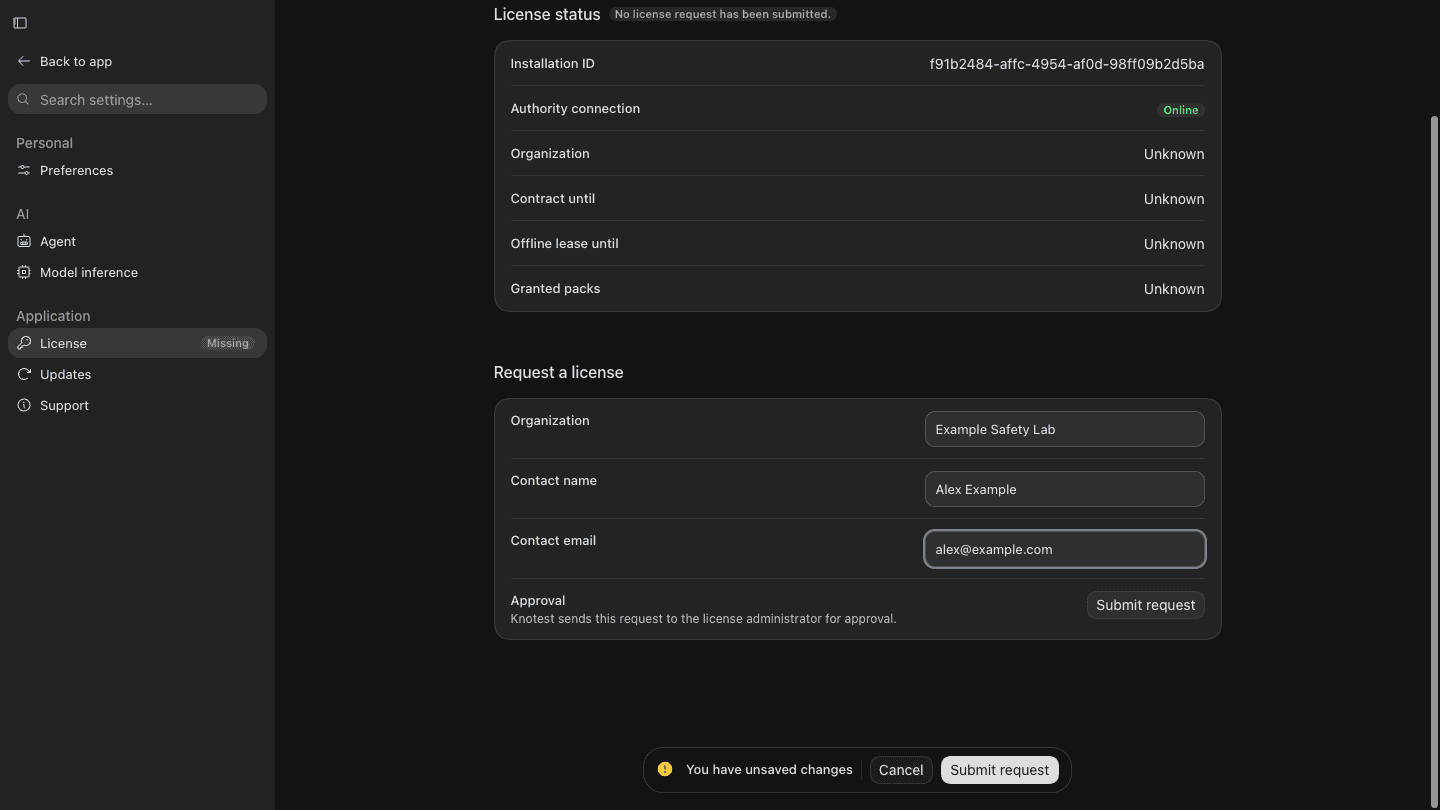
The screenshot uses fictional details and stops before submission.
Submit and check the result
- Check your details and choose Submit request while connected to the internet.
- After submission, the License panel shows the request status. Pending means it is waiting for approval; it does not mean the application has activated yet.
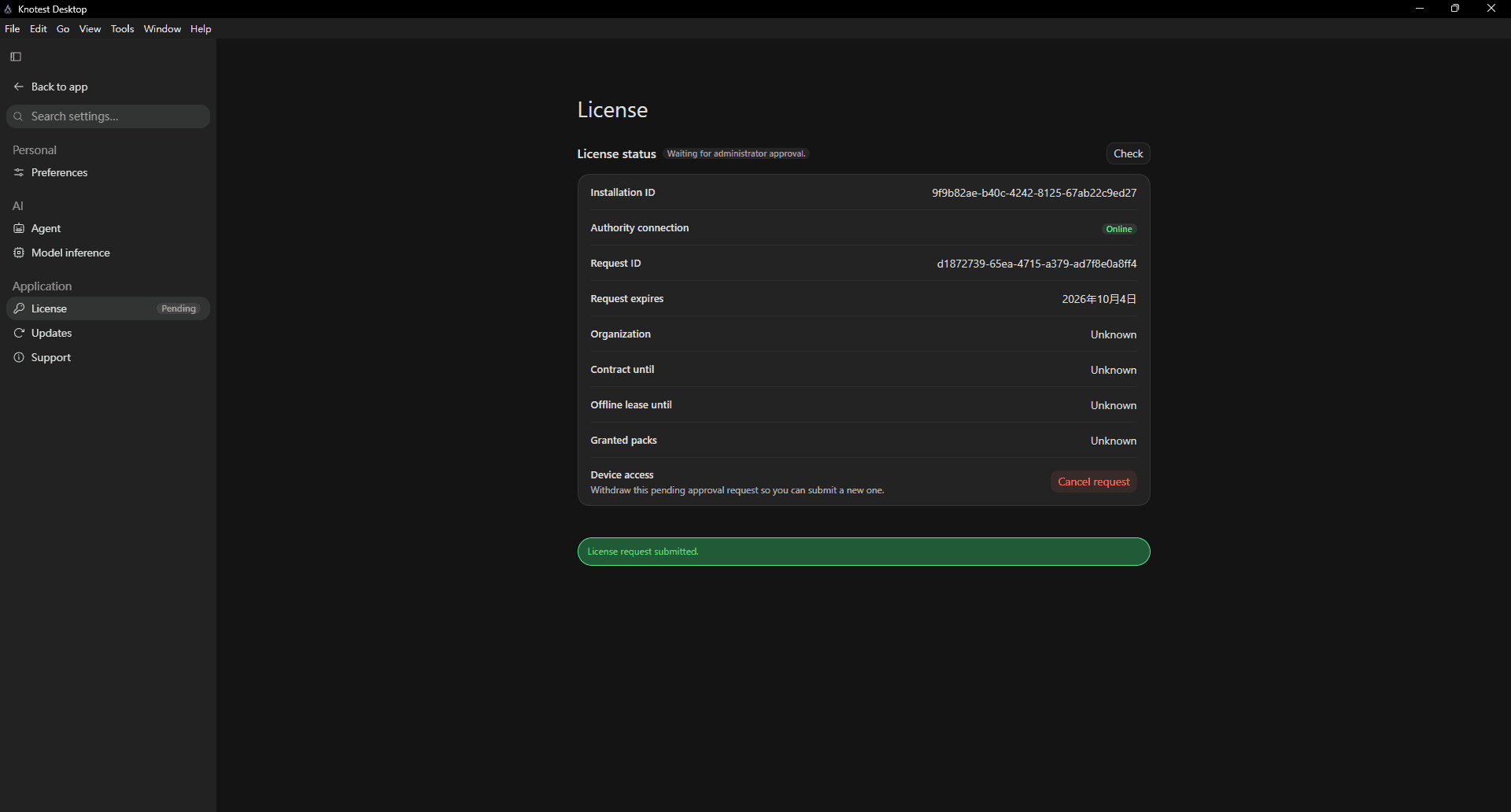
While the request is pending:
- Select Check to retrieve the latest status.
- The panel keeps the Installation ID, Request ID, and request expiry visible.
- Organization, contract, offline lease, and granted packs remain Unknown until activation details are received.
- Cancel request withdraws this pending request so that you can submit a new one. It does not approve or activate the installation.
- When the approved activation is received, the License status changes to Active.
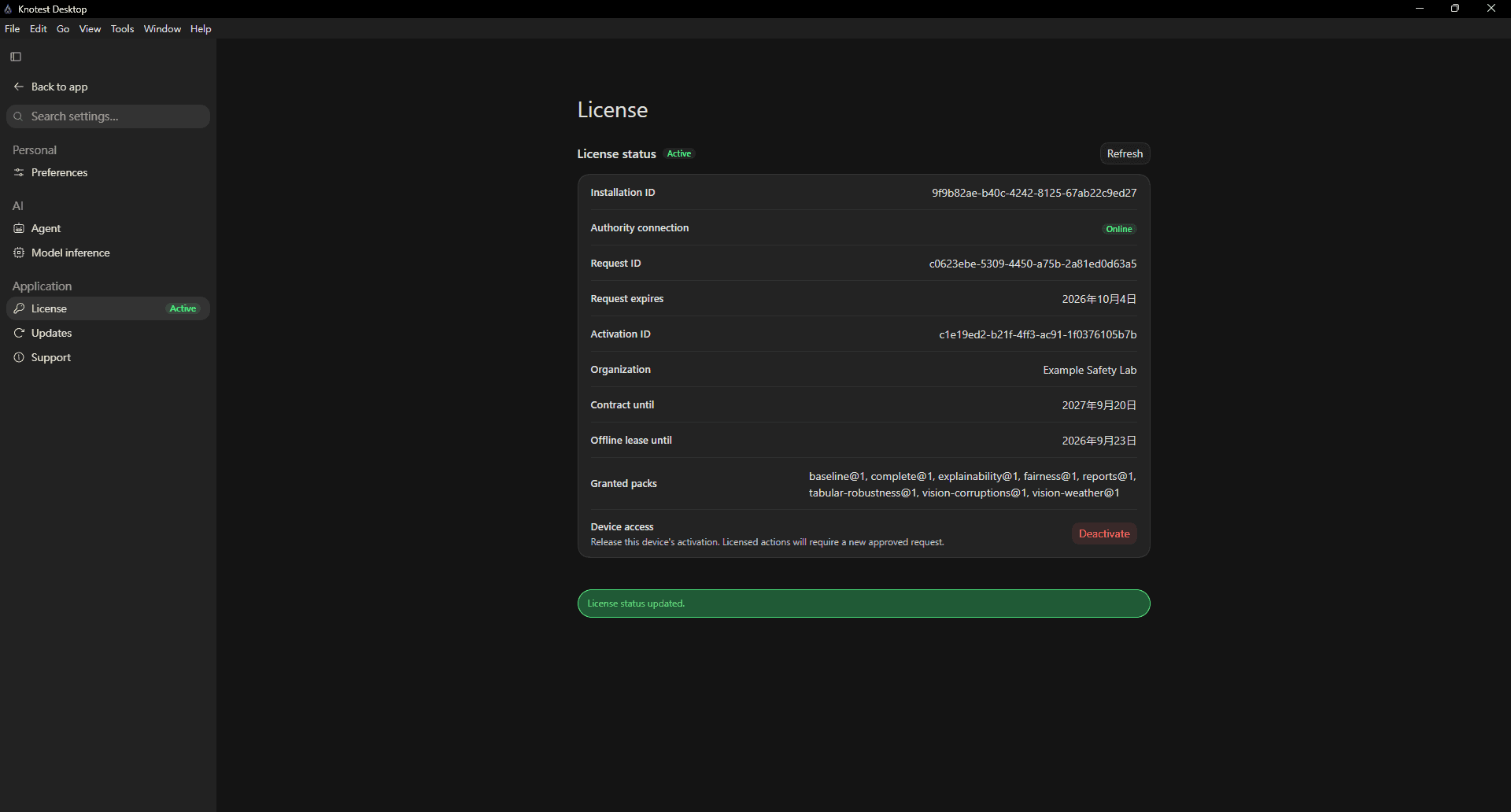
The Active panel shows the Organization, contract end date, offline lease, and granted packs for this installation. Refresh retrieves the latest license status. Deactivate releases this device's activation; licensed actions then require a new approved request.
- If the page reports a connection problem or a declined request, read the message and follow License troubleshooting.
If this installation already shows Active, continue without submitting another request. For an existing activation that needs renewal, use the Refresh action offered by the License panel.
Continue to Download the Tutorial Inputs.